Deploying self-hosted LLMs in Domino
Author
Andrea Lowe
Product Marketing Director, Data Science/AI/ML
Article topics
LLM hosting, open-source model deployment, model serving
Intended audience
Data scientists, ML engineers, AI engineers, platform teams
Overview and goals
The challenge
Organizations adopting LLMs face a fundamental tension between capability and control. Frontier API providers offer powerful models, but every request sends potentially sensitive data such as PII, security vulnerabilities, and trade secrets to a third party. For regulated industries and security-conscious teams, that’s a non-starter.
The alternative of self-hosting open-source models trades one problem for another. Containerizing inference servers, provisioning GPUs, exposing APIs, and building monitoring from scratch takes weeks of DevOps work before you've written a single evaluation. Once a model is running, operational questions multiply:
- How do you compare a locally hosted model against a frontier baseline using the same evaluation criteria?
- How do you experiment with different model sizes or hardware tiers without rebuilding your serving infrastructure each time?
- How do you know when a fine-tuned model is actually outperforming the baseline, and once it is, how do you promote it to production with full version control and an audit trail?
Most teams never get clean answers. They stitch together disconnected tools for serving, monitoring, and evaluation, and lose the thread between them. The question that actually matters, is this model ready to replace the API?, stays unanswered.
The solution
Domino lets you register open-source LLMs, deploy them as production endpoints on your own infrastructure, and manage the full lifecycle without leaving the platform. Models are served via an optimized vLLM runtime behind an OpenAI-compatible API, so your application code works the same whether it's calling a hosted Llama model or an external GPT endpoint. As a result, sensitive data never leaves your network.
From there, you can experiment with different model sizes, GPU configurations, and fine-tuned iterations. Domino versions each configuration so every deployment is reproducible and auditable. Real-time dashboards surface token throughput, latency, error rates, and GPU utilization, giving you the same production observability you'd expect from a managed API service. Domino's experiment tracking applies equally to local and external models. As a result, you can run the same evaluation suite against both, giving you an informed basis for determining when a self-hosted model is ready to replace or complement a frontier API.
When should you consider hosting LLMs in Domino?
- Your data can't leave your network. You're working with PII, classified information, or proprietary data that cannot be sent to external API providers. Running models inside your Domino deployment keeps all inference traffic on your infrastructure.
- You want to reduce inference costs at scale. High-volume workloads can become expensive on pay-per-token APIs. Self-hosting lets you run unlimited inference on dedicated GPUs at a predictable cost.
- You need to compare local models against frontier baselines. You want to evaluate whether an open-source model meets your quality bar before committing to it, using the same metrics and evaluation suite you apply to external APIs.
- You're fine-tuning models for domain-specific tasks. You've customized a model on your own data and need to deploy, version, and monitor each iteration with a full audit trail.
- You want model-agnostic application code. Swap between a self-hosted model and an external provider without rewriting integration code or changing packages.
How to set up LLM hosting in Domino
The following steps walk through deploying an open-source LLM as a production endpoint, configuring it for your workload, and connecting it to Domino's monitoring and evaluation capabilities. For detailed UI instructions, see the Register and deploy LLMs documentation.
Step 1. Choose and register your model
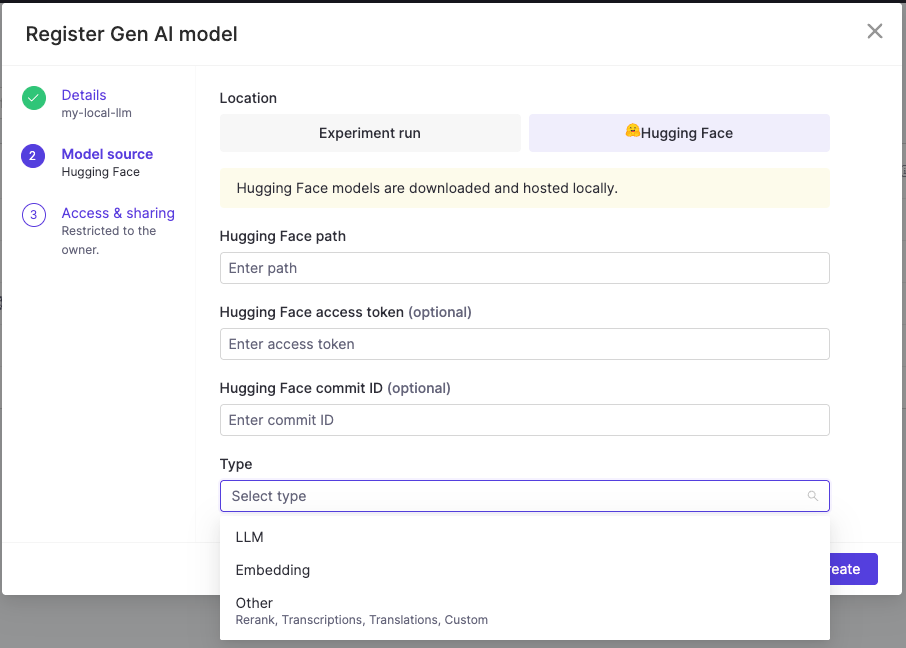
Navigate to Models > Register > Gen AI model and select your model source. Domino serves hosted models using the vLLM runtime, so your model must be compatible with vLLM. Most popular open-source LLMs (Llama, Mistral, Mixtral, Phi, Gemma, and others) are supported. To verify compatibility, check whether the model is tagged with vLLM on Hugging Face or whether the "architectures" field in the model's config.json matches an architecture on the vLLM supported models list. Domino supports registering models from Hugging Face or from your experiment runs if you've logged a model via MLflow.
When selecting a model, consider the tradeoff between capability and resource cost. Smaller models, like Llama 3.1 8B, fit on a single GPU and work well for focused tasks such as classification, extraction, or summarization. Larger models provide stronger general reasoning but require more GPU memory and higher-tier hardware. Start with the smallest model that meets your quality requirements and scale up based on evaluation results.
To register from an experiment run, log your model during training or fine-tuning using mlflow.transformers.log_model(), which saves the model, tokenizer, and any additional components as versioned artifacts within the run. Once logged, the model appears as a selectable source when registering in Domino, linking the deployed endpoint directly back to the experiment that produced it.
When registering from Hugging Face, note that some models require you to accept a license agreement before they appear in Domino's registry. This will also require that you use your Hugging Face access token during registration.

Step 2. Sizing your GPU for LLM inference
Choosing the right hardware tier is one of the most impactful decisions when hosting a model. Under-provisioning leads to out-of-memory errors or degraded latency, while over-provisioning wastes budget. GPU memory during inference is consumed by three things: model weights, KV cache, and runtime overhead. We’ll discuss this below, but here’s a practical tip: if the math feels overwhelming, paste your model's config.json into your favorite AI assistant and ask it to estimate the VRAM requirements for your target context length and concurrency. It can walk through the calculation step by step.
Model weights
Every model has a fixed memory cost based on its size (parameter count) and the numerical format used to store those parameters (precision). Lower-precision formats use less memory per parameter but may reduce model quality.
The formula is Weight memory = parameter count × bytes per parameter
Common precisions:
Format
Bytes Per Parameter
FP32
4
FP16
2
INT8
1
INT4
5
For example, Llama 3.1 8B in FP16 requires roughly 8 billion × 2 bytes = 16 GB just for the weights. A 70B model in FP16 needs approximately 140 GB.
You can find the parameter count on the model's Hugging Face page, usually in the model name or card summary. For a quick estimate of weight memory, check the total size shown next to the safetensors badge, which reflects the on-disk size at the model's default precision. For exact architecture details needed for KV cache calculations (such as layer count, attention head count, hidden size), check the config.json file in the repository. The key fields are num_hidden_layers, hidden_size, num_attention_heads, and num_key_value_heads.
KV cache
The KV cache stores the model's running context for each token it has processed, so it doesn't have to recompute its understanding of the full sequence at every generation step. The longer the sequence and the more concurrent requests you serve, the more memory the KV cache consumes. It's typically the largest variable memory cost in serving.
The per-token KV cache formula is:
KV cache per token = 2 × num_layers × num_kv_heads × head_dim × bytes_per_element
The "2" accounts for storing both keys and values. You can derive head_dim from hidden_size / num_attention_heads (found in config.json). Many newer models use Grouped Query Attention (GQA), in which num_key_value_heads is smaller than num_attention_heads, significantly reducing KV cache size.
Example: Llama 3.1 8B (FP16)
Parameter
Value
num_layers
32
num_kv_heads
8 (GQA)
head_dim
128
bytes_per_element
2 (FP16)
Per token: 2 × 32 × 8 × 128 × 2 = 131,072 bytes ≈ 128 KB
For a single sequence at 8,192 tokens: 128 KB × 8,192 ≈ 1 GB. If you're serving multiple concurrent requests, multiply accordingly.
This is why max_model_len matters in vLLM. It controls the maximum sequence length the endpoint will accept, and directly determines how much GPU memory is reserved for KV cache. If you set it to the model's full advertised context window (e.g., 128K tokens for Llama 3.1), KV cache alone could require tens of gigabytes. If your use case only needs 4K or 8K context, setting max_model_len lower frees up significant memory for concurrent requests.
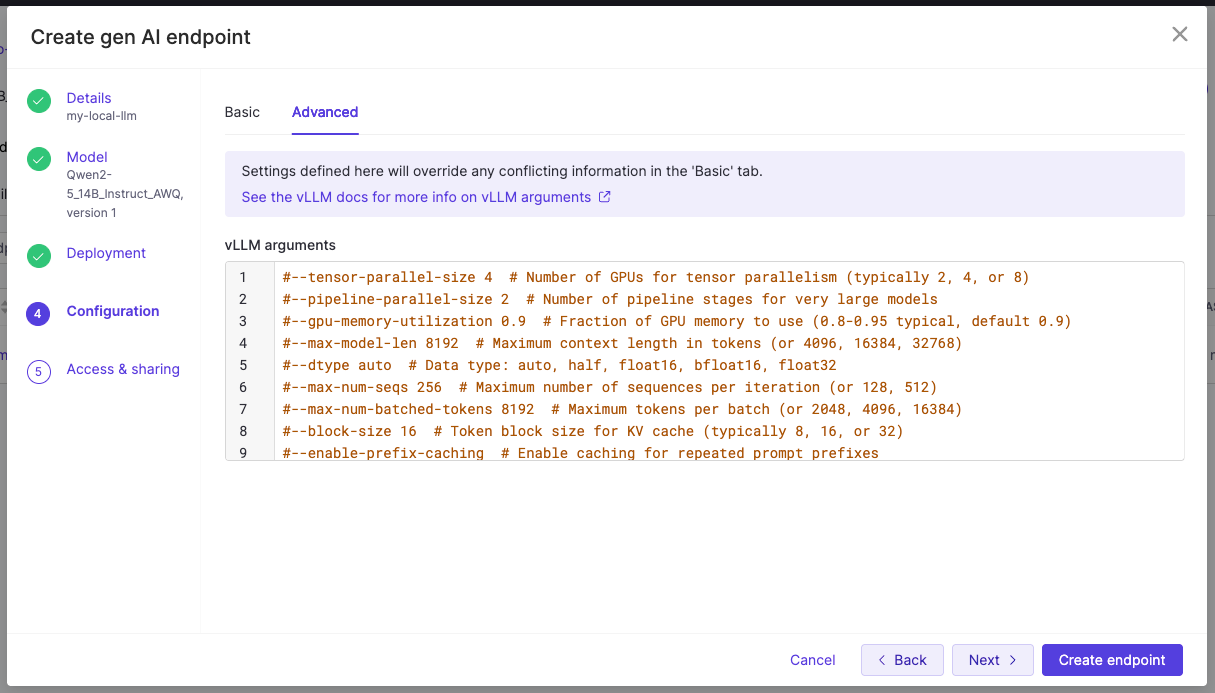
In Domino, you can pass --max-model-len as a vLLM argument under Configuration > Advanced Tab > vLLM arguments when creating your endpoint.
Runtime overhead
Beyond weights and KV cache, vLLM reserves additional memory for activation buffers, CUDA graphs, and internal scheduling state. A reasonable rule of thumb is to reserve 10-20% of total GPU memory for this overhead. vLLM's gpu_memory_utilization parameter (default 0.9) controls the percentage of GPU memory it uses, with the remainder reserved as a buffer.
Putting it together
A practical sizing estimate:
Total VRAM needed ≈ weight memory + (KV cache per token × max_model_len × expected concurrent sequences) + overhead
For Llama 3.1 8B in FP16 with 8K context and a few concurrent requests, a single GPU with 24 GB (like an A10G) works comfortably. For 70B models, you'll need multi-GPU setups using tensor parallelism to shard weights across GPUs, which also distributes the KV cache.
If vLLM throws an error at startup about insufficient KV cache memory, you have several options:
- Reduce
--max-model-len - Raise
gpu_memory_utilization(default 0.9) to give vLLM access to more GPU memory for KV cache. - Move to a larger hardware tier.
- Use tensor parallelism to split the model across GPUs.
Step 3: Configure and deploy the endpoint
From your registered model's Endpoints tab, click Create endpoint. With your hardware tier selected based on the sizing considerations in Step 2, the remaining configuration decisions are:
1. Access controls: Specify which users or organizations can call this endpoint. This is especially important when the model serves sensitive workloads or when different teams should use different model versions.
2. Advanced vLLM arguments: If your agents or applications use tool calling, you need two flags under Configuration > Advanced Tab > vLLM arguments:
- --
enable-auto-tool-choicerequired for all tool calling setups. - --
tool-call-parser<parser>where the parser must match your model's tool call format.
You can find the supported parsers and recommended chat templates in the vLLM tool calling documentation, and check whether your model ships with a tool-use chat template in its tokenizer_config.json on Hugging Face. You can also register custom parsers via --tool-parser-plugin. If you see tool call content appearing in the content field instead of tool_calls, the parser likely doesn't match your model's output format.
3. Other commonly used vLLM argument:
Argument
What it does
--tensor-parallel-size <N>
Splits the model across multiple GPUs. Set this to the number of GPUs in your hardware tier.
--dtype
Controls weight precision. Defaults to auto (typically FP16 or BF16).
--quantization
Enables serving a pre-quantized model (e.g., awq, gptq, fp8). The model must already be quantized in that format.
--kv-cache-dtype fp8
Stores the KV cache in FP8 instead of the default precision, roughly halving KV cache memory and increasing context length or concurrency headroom.
--enforce-eager
Disables CUDA graph compilation, reducing memory usage at the cost of some inference speed.
For a full list of arguments, see the vLLM server arguments documentation.
Once deployed, Domino exposes an OpenAI-compatible API. As a result, you can point any code that uses the OpenAI SDK at your hosted endpoint by changing the base URL and model name. No new packages or major refactoring required.
Step 4. Monitor endpoint performance
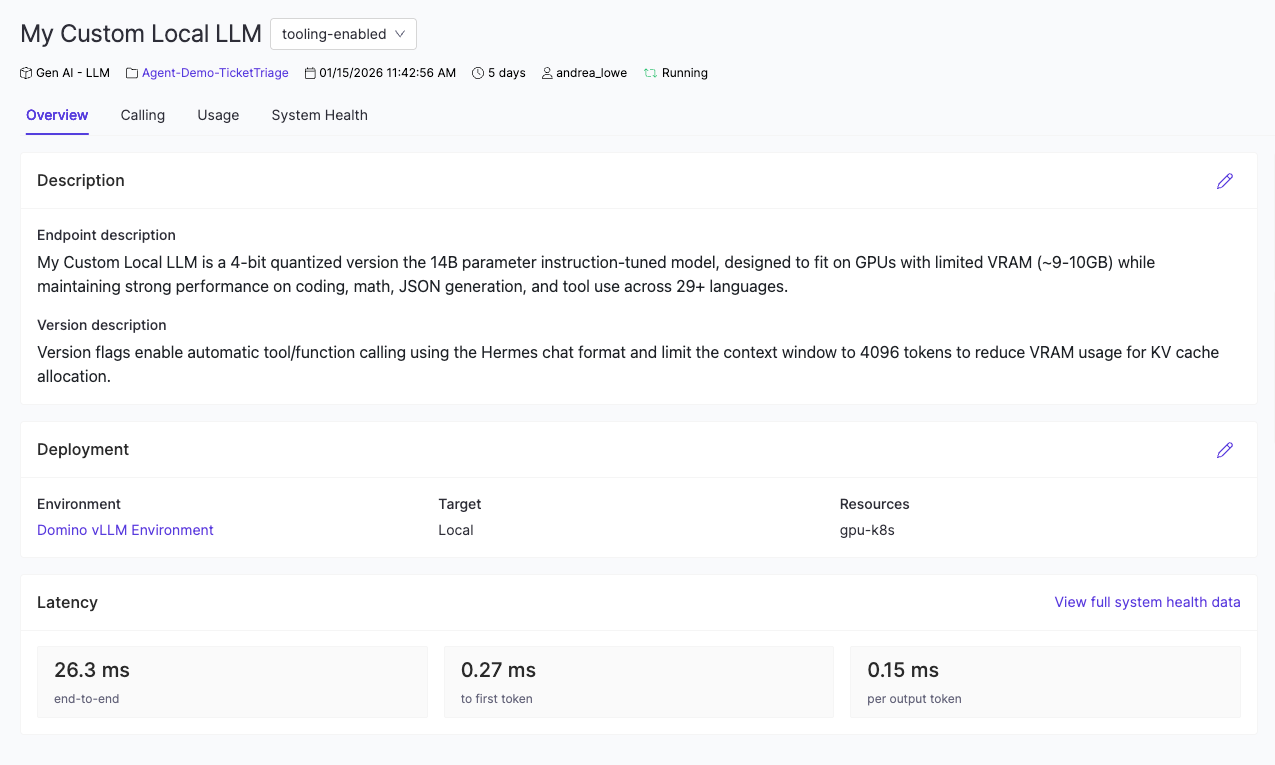
After deployment, navigate to your endpoint's dashboard to track production health across four views:
- Overview shows deployment status, a description of the endpoint, and high-level metrics.
- Calling provides the endpoint URL, code snippets for making requests, and any usage instructions added by the endpoint creator.
- Usage tracks requests, errors, and input/output token counts over time.
- System Health surfaces latency, resource utilization, and logs.
Use these metrics to determine whether your model is keeping up with demand. If latency is climbing or GPU utilization is consistently at max, you have several options: a) move to a higher hardware tier, b) deploy a lower-priority quantized variant, or c) spin up additional endpoints to distribute the load.
Step 5: (Optional) Compare against frontier baselines
The real power of hosting models in Domino is that local and external models live in the same evaluation framework. Domino's experiment tracking treats every model the same, regardless of where it runs. You can run identical evaluation suites against your hosted Llama endpoint and an external API like GPT or Claude.
To do this, set up an experiment that calls both endpoints with the same test inputs, then compare the results in the Experiment Manager. To capture full trace-level detail across each call (token usage, latency, tool invocations, and evaluation scores), instrument your code using Domino's GenAI tracing SDK. The GenAI Tracing Blueprint walks through this setup end-to-end.
If your hosted model falls short, you have a clear path forward: a) select a larger model, b) try a higher-precision variant, or c) fine-tune on domain-specific data. Domino tracks every configuration so each iteration is versioned, reproducible, and auditable.
Step 6: (Optional) Iterate with fine-tuning
When a base model doesn't meet your quality bar for a specific task, fine-tune it on your domain data. Domino versions each fine-tuned iteration alongside the base model, so you can:
- Register and deploy a new version from an experiment run.
- Compare it against the previous iteration using the same evaluation suite.
- Promote the best-performing version to production with a full audit trail.
This creates a continuous improvement loop: deploy, monitor, evaluate, fine-tune, redeploy. Once your model is production-ready and powering agentic workflows, the Deploying Agentic AI Systems Blueprint covers how to deploy, trace, and monitor the full agent in production.
Watch a demo
See how Domino takes you from a project template to a live, monitored agentic AI system — with governance, guardrails, and full observability built in every step of the way.


Andrea Lowe
Product Marketing Director, Data Science/AI/ML

Andrea Lowe, PhD is the Product Marketing Director for Data Science, AI, and ML at Domino Data Lab, where she drives go-to-market strategy and technical content for the platform. Over seven years at Domino, she has worked across training, sales engineering, product, and customer success, building a deep understanding of what it actually takes to deploy AI in regulated industries. Before entering tech, she was a neuroscientist turned data scientist.