Tuning SAS for the cloud: How to run high-performance SAS workloads on Domino
Author
Wasantha Gamage
Solution engineer
Article topics
SAS, SAS on cloud, SAS performance tuning, SAS workload optimization
Intended audience
Enterprise SAS administrators and analysts, IT architects and infrastructure leads, and Domino platform users and admins
Overview and goals
Running SAS in the cloud is not the same as running it on-premises. What worked well on static, dedicated infrastructure often needs tuning in cloud environments like Domino. This guide shows you how to optimize SAS performance on Domino, avoid common pitfalls, and get the most out of your investment, whether you're migrating from SAS Viya or SAS 9.4. If you're responsible for making sure SAS runs fast and reliably in the cloud, this document is for you.
When should you consider running SAS on Domino?
Domino is a powerful platform for modernizing SAS workloads, whether you're migrating from on-premises or scaling your analytics in the cloud. It supports a wide range of deployment models and compliance needs, making it ideal for enterprise teams working with SAS.
You’re modernizing from on-premises SAS
If you're moving away from static, legacy infrastructure, Domino offers a cloud-native way to run SAS in scalable, containerized environments — without losing compatibility with your existing SAS code.
You need flexible deployment options
Domino supports multiple deployment models to meet your infrastructure and compliance needs:
- On-premises Kubernetes clusters (e.g., OpenShift)
- Customer-managed private cloud (e.g., AWS EKS, Azure AKS)
- Domino Cloud – a fully managed SaaS offering
- Domino Cloud for Life Sciences – a GxP-compliant managed environment for life sciences
This flexibility lets you run SAS where it makes the most sense for your business, whether that's on-premises, in your VPC, or fully managed by Domino.
You need scalable, on-demand compute
Domino dynamically provisions compute environments on Kubernetes, so you can run SAS jobs when you need them and scale resources up or down automatically — no more fixed server capacity or manual provisioning.
You require data sovereignty and compliance (e.g., GDPR)
Domino supports separate data planes across different regions or cloud environments. This allows you to:
- Run data-sensitive SAS workloads in on-premises or region-specific clouds
- Meet data residency requirements such as EU GDPR
- Isolate workloads per region or business unit as needed
You want to integrate SAS with modern analytics stacks
Domino supports multi-language workflows (SAS, Python, R, SQL) on the same platform, so teams can combine legacy SAS models with newer tools and collaborate seamlessly.
You need centralized governance and collaboration
Domino makes it easy to manage users, projects, compute resources, and data access from a single interface, while also tracking history, versions, and audit trails for regulatory or internal compliance.
How do blueprints help with running high-performance SAS workloads in Domino?
SAS has traditionally been deployed on static, on-premises infrastructure where system resources are manually tuned and permanently provisioned. However, running SAS on modern, cloud-based, on-demand platforms like Domino introduces new considerations — especially around resource management, performance tuning, and storage I/O.
This article is intended for users and organizations transitioning from on-premises SAS deployments (e.g., Viya or SAS 9.4) to SAS Analytics Pro on Domino. Leading Domino customers are already running SAS successfully at scale, and this post shares key learnings and best practices to help you get the most out of SAS in a containerized, Kubernetes-based cloud environment.
These blueprints provide practical, field-tested guidance to help you get the most out of SAS in a modern, hybrid platform like Domino. By following these recommendations, you’ll better align SAS's performance characteristics with the elasticity, scaling, and storage patterns of cloud-native infrastructure and ensure a smoother, faster user experience on Domino.
SAS on Domino architecture
SAS can be run on Domino as containerized workloads. Domino SAS compute environment images are created based on the containerized SAS images available for licensed customers.

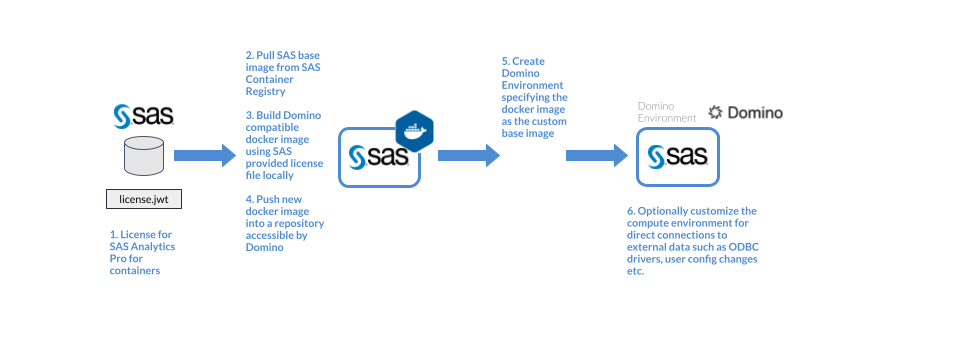
Once SAS Compute Environment images are available in Domino, SAS workloads can be run as Domino workspaces for interactive development and jobs for non-interactive workloads.

Guidelines and recommendations
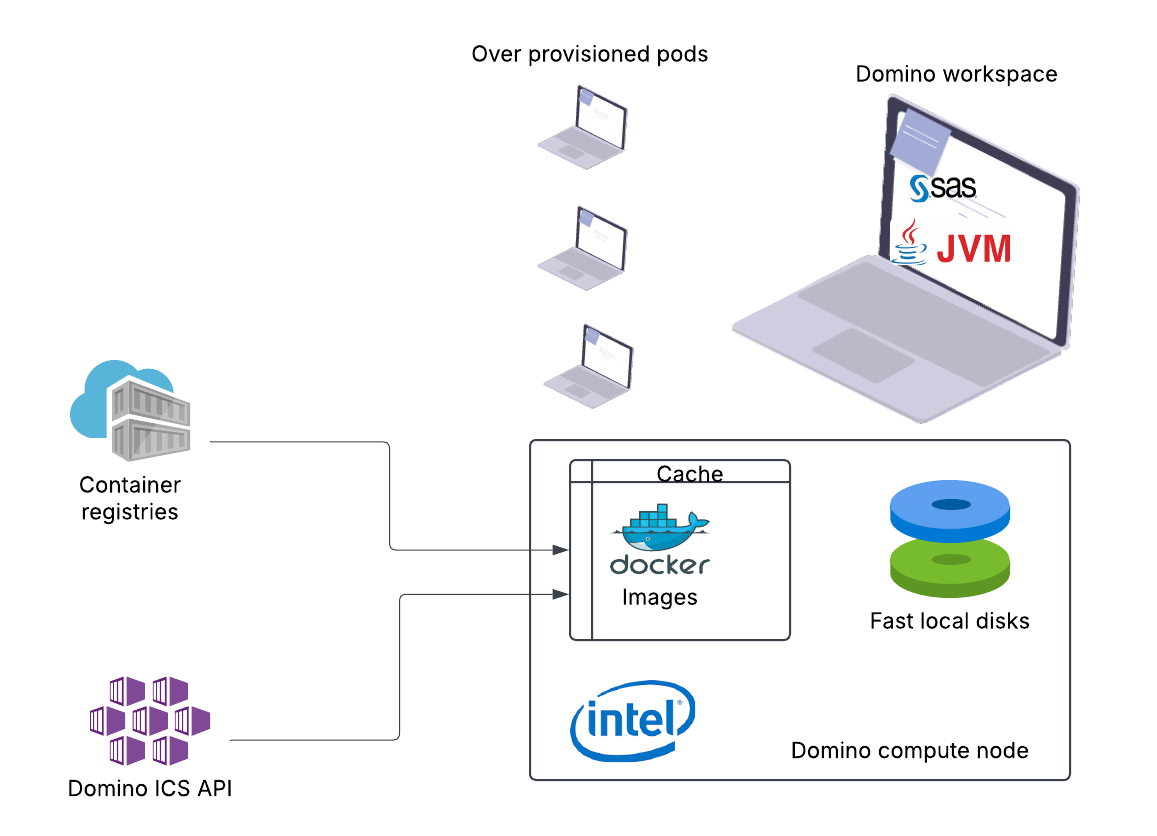
Enable image caching
Domino offers an image caching service that stores frequently used compute environments on compute nodes. Enabling this service can significantly reduce the environment startup time by avoiding repeated image pulls.
Use Intel-based compute
SAS is optimized for Intel architecture, particularly for performance-critical libraries and numeric computation. It is recommended to use compute nodes backed by Intel-based virtual machines or hardware for best performance.
Use Domino overprovisioning
On cloud deployments enabled for autoscaling, when a capacity request is made, new nodes are provisioned. This option minimizes cost, but provisioning a new node can take several minutes, causing users to wait. The situation can be particularly time-consuming in the mornings when many users first log onto a system that has scaled down overnight.
You can address this problem by overprovisioning several warm slots for popular SAS hardware tiers on a schedule. Domino will automatically pre-provision nodes that might be necessary to accommodate the specified number of overprovisioned executions using this hardware tier. This minimizes the chance that a user must wait for a new node to spin up.
Optimize container image pulls
Container image pull time can impact the startup latency of SAS environments, especially when working with large docker images. Several strategies can help reduce this overhead across cloud providers.
Use private networking for registry access
If your platform supports private connectivity to its container registry (e.g., AWS ECR with VPC Endpoints, Azure Private Link for ACR), enable it to:
- Reduce network hops
- Avoid public internet throttling
- Ensure more consistent pull performance
Bake images into node AMIs
On platforms like AWS, you can create custom Amazon Machine Images (AMIs) with your SAS container images preloaded. This ensures:
- Containers start instantly (no pull needed)
- Ideal for bursty workloads or autoscaling scenarios
Enable image streaming (where supported)
Some cloud platforms offer artifact streaming that allows containers to start before the full image is pulled.
Where streaming is available, enabling it can reduce cold start time for large images.
Choose high-capacity compute nodes
Some cloud Kubernetes services limit the number of pods per node based on networking configurations (e.g., CNI plugins). Choosing higher-capacity VM types allows more SAS workloads per node, helping optimize resource utilization within platform limits.
Storage recommendations
The following shows a typical storage architecture of the Domino platform.
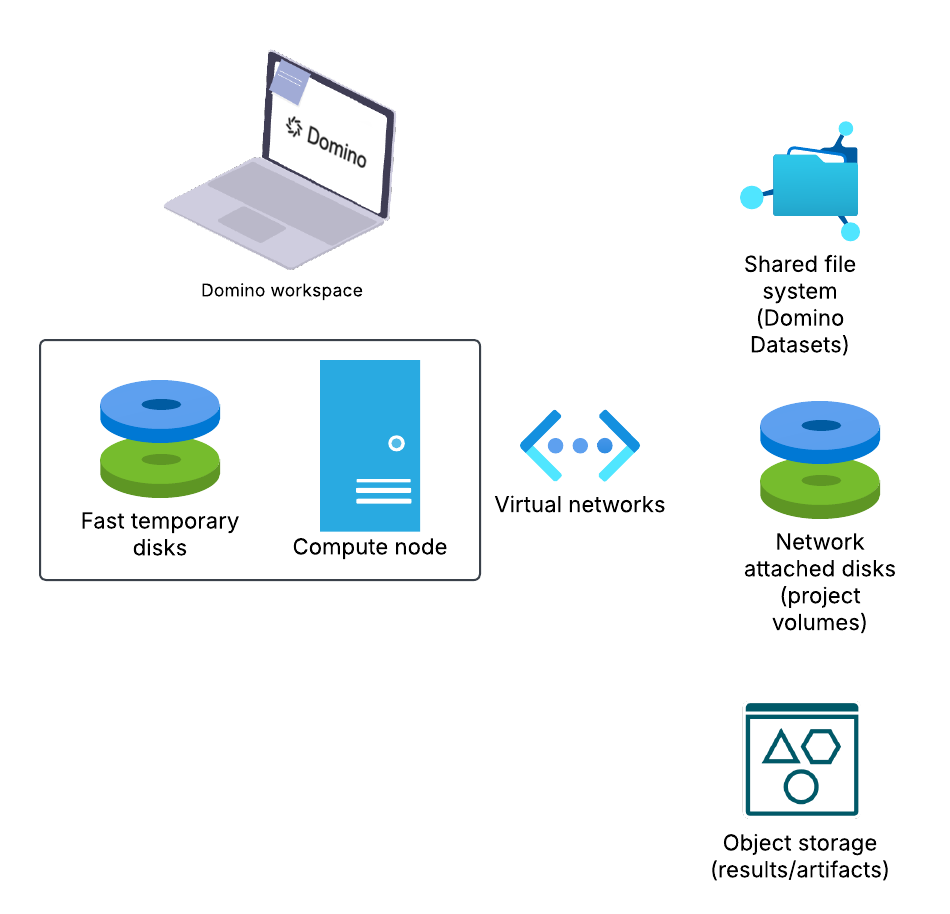
Domino workspaces and jobs use the project volumes as temporary local disks. Domino backs up results, artifacts, and code in Domino File System (DFS) based projects to cloud object storage.
Domino Datasets provide a convenient way to store and share data across projects and users. Domino Datasets stores data locally on the platform. Under the hood, Datasets are typically backed by shared file systems provisioned through the cloud provider.
Use high-performance storage for datasets
When used in SAS workloads, the backing storage's performance directly impacts data access speeds. For I/O-intensive applications like SAS, the performance characteristics of the underlying shared storage can significantly impact read/write speeds, especially for large datasets.
Standard or basic tiers may have limited throughput and higher latency, which can slow down SAS operations.
Premium/enterprise tiers offer:
- Higher throughput per IOPS
- Lower latency
- Better scaling for concurrent users
When using datasets with SAS, ensure they are backed by premium or enterprise-tier storage.
Storage performance guidance (Azure example)
Use fast local disks for SAS work/UTILS directory
SAS workloads generate significant I/O in temporary areas like the WORK directory. The following shows the important SAS directories and the impact of I/O on the performance.
Directory
Description
Work Library- WORK
Stores temporary datasets and files created during an SAS session. These files are deleted at the end of the session. Efficient I/O performance is essential for this directory.
Utility Files Location - UTILLOC
Holds utility files used by SAS procedures and processes, such as sorting operations. By default, it often shares the same location as the WORK library
SAS Home Directory - SAS_HOME
Contains the installation files and core components of SAS. This is the root directory where SAS is installed.
SAS Configuration Directory - SAS_CONFIG
Stores configuration files that define the behavior and settings of the SAS environment.
Using locally attached or ephemeral disks (e.g., NVMe, AWS instance store, or Azure temporary disks) for these directories greatly improves performance over network-attached storage.
Temporary disk performance overview (Azure example)
AWS Instance Store Overview (AWS example)
Tune SAS memory and JVM settings for containerized environments
When running SAS on Domino (or any Kubernetes-based platform), SAS workloads execute inside containers (pods). By default, SAS does not automatically consume all memory available to the container, which can lead to suboptimal performance for memory-intensive workloads.
Even if a Domino workspace has 16 GB of memory, SAS may only use a small portion unless explicitly configured. This is controlled by the MEMSIZE parameter, which defines how much memory a SAS session can use.
Set an appropriate MEMSIZE
To maximize performance, set MEMSIZE based on the Domino workspace’s memory allocation while reserving headroom for:
- Java processes (used in SAS Studio)
- OS-level container overhead
- SAS helper threads and utilities
Rule of thumb:
Set MEMSIZE to 80-90% of the Workspace Hardware Tier memory
| HW Tier Memory | Recommended MEMSIZE |
| 18 GB | 16 GB (memsize=16G) |
| 36 GB | 32 GB (memsize=32G) |
These values can be added to the /opt/sas/viya/home/SASFoundation/sasv9_local.cfg via Domino presetup scripts.
Tune JVM stack size (optional)
SAS Studio and several other Viya components (e.g., SAS/ACCESS engines, graphical interfaces, web services) rely on the Java Virtual Machine (JVM) for execution. The JVM stack size controls the amount of memory allocated per thread for call stacks and local variables.
The StackOverflowErrors usually stem from insufficient stack size per thread, which is controlled by the -Xss JVM option.
This can be set with SASV9_OPTIONS='-JREOPTIONS ( -Xss2048k )' or by adding them to the /opt/sas/viya/home/SASFoundation/sasv9_local.cfg
Blueprint overview diagram
Check out the GitHub repo


Wasantha Gamage
Solutions engineer

I partner with some of the largest life sciences companies to ensure successful adoption of the Domino platform. I design and deliver solutions addressing real-world challenges in pharmaceutical and biotech organizations. My focus is training and advising data scientists on efficient platform use and onboarding complex AI/ML use cases across domains like histopathology and oncology.